Using Payment Links, Payment Page, payment extensions, Payouts, POS, or the Reconciliation API? View the classic product documentation
Manage transactions
Refund a payment, or capture or void a preauthorisation, using the Dashboard or the Orchestration API.
Overview
When a payment has been authorised or has succeeded, you can still act on it:
- Capture - take the funds that a preauthorisation is holding. Money moves and you receive settlement.
- Void (cancel) - release the hold on a preauthorisation without taking any money. Nothing settles and the customer sees the hold disappear.
- Refund - return captured funds to the customer. Only money that has actually moved can be refunded.
Every operation is available in two places:
- The Peach Dashboard - a manual, per-transaction action from the Transactions section. Best for support teams and one-off corrections.
- The Orchestration API - a server-side request. Best for building refunds and captures into your own admin tooling or order workflows.
This page covers both, side by side.
Dashboard permissions
Only certain Dashboard roles can refund, capture, or reverse transactions. If you don't see the buttons described below, ask your Dashboard administrator to check your role.
Log in to the Dashboard
You can log in to the Dashboard using one of the following methods:
- Using a magic link; this is the default login method. After entering your email address, Dashboard sends you a magic link that you click to log in.
- Using a password.
Info
Log in using a magic link
To access the Dashboard:
- Visit https://dashboard.peachpayments.com.
- Enter your company email address and click Submit.
- In your email inbox, click the Login to Dashboard link that you received from Peach Payments (if you've got multiple login emails, click the latest link). If the email isn't in your inbox, check your spam folder. The magic link expires after five minutes, but you can redo this procedure to receive a new link.
- When the Dashboard prompts you for two-factor authentication:
- On your phone, open your authenticator app and note the 6-digit authentication code for Peach Payments.
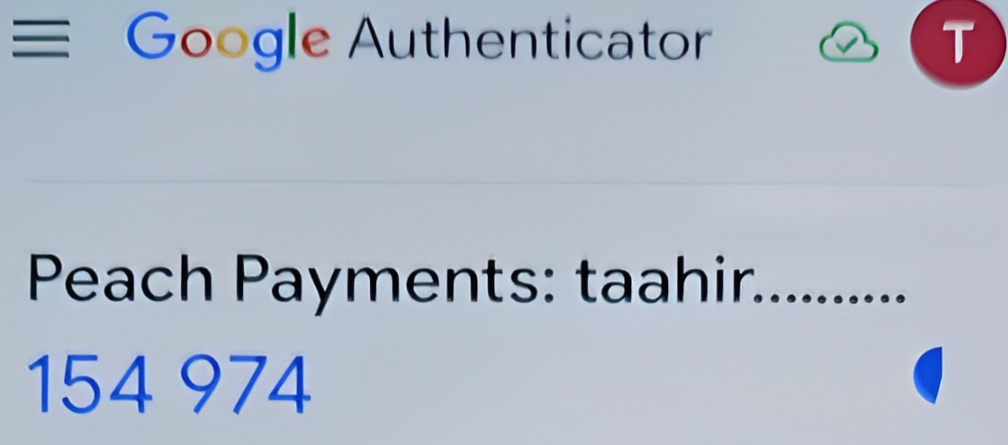
Example Google Authenticator authentication code. - In your browser, in the Verify Your Identity window, enter the authentication code.
- Select Remember this device for 30 days if you don't want the Dashboard to ask for an authentication code for the next 30 days.
- Click Continue.
- On your phone, open your authenticator app and note the 6-digit authentication code for Peach Payments.
Warning
Log in using a password
When you first gain access to the Dashboard, the email contains a link to either log in using a magic link, or to complete your account by setting a password. Use the password that you set there for all future logins, unless you reset it. If you can't find the initial email, you can set your first password using the reset your password functionality.
To access the Dashboard:
- Visit https://dashboard.peachpayments.com.
- Click Username & Password beneath the Submit button.
- Enter your company email address and password, and click Log in.
- When the Dashboard prompts you for two-factor authentication:
- On your phone, open your authenticator app and note the 6-digit authentication code for Peach Payments.
- In your browser, in the Verify Your Identity window, enter the authentication code.
- Select Remember this device for 30 days if you don't want the Dashboard to ask for an authentication code for the next 30 days.
- Click Continue.
Capture a preauthorisation
A payment created with capture_method: "manual" stops at the requires_capture state after the customer authorises: the funds are held on their card but have not moved. Capturing completes the payment - it is what makes the money move and what gets you settled.
You can capture the full authorised amount or less. Capturing less than you authorised releases the difference back to the customer. Capturing more than you authorised requires overcapture, a separate PSP capability that must be requested on the original payment.
Captures are final, and holds expire
- You cannot undo a capture once it has been processed. If you captured in error, your remedy is a refund.
- Authorisation holds expire on their own - for cards, typically after about seven days, depending on the issuer and scheme. Capture (or void) the preauthorisation before the hold lapses.
Capture via the API
Send a capture request using the capture endpoint, or follow the guided walkthroughs: Pre-authorisation, Manual capture, and Partial capture.
Capture using the Dashboard
- Log in to your Peach Dashboard.
- In the Transactions section, use the search bar or filters to find the preauthorisation (PA) transaction that you want to capture, and select it.
- In the details panel that appears, click Capture.
- In the Capture transaction window, choose a full or partial capture. For a partial capture, enter the amount, and use the Reverse balance amount? toggle if you want to release the remaining hold immediately.
- Select a reason for the capture (choose Other to provide your own).
- Click Confirm capture, then confirm again in the window that appears.
The capture is submitted for processing and appears in the transaction listing shortly afterwards.
Void a preauthorisation
Voiding cancels a preauthorisation and releases the hold immediately, which is what the customer's bank shows them. Because the funds never moved, there is no settlement and nothing appears on the customer's statement.
A void is not a refund
- Preauthorisations cannot be refunded - a refund returns money that moved, and a preauthorisation has not moved any. Void it instead.
- You cannot void a payment you have already captured. Once captured, use a refund.
Void via the API
Send a cancel request using the cancel endpoint.
Reverse using the Dashboard
The Dashboard calls a void a reversal:
- Log in to your Peach Dashboard.
- In the Transactions section, find the preauthorisation (PA) transaction that you want to reverse, and select it.
- In the details panel that appears, click Reverse.
- In the Reverse Pre-Authorisation window, choose a full or partial reversal (enter the amount for a partial reversal), select a reason, and click Confirm reversal, then confirm again.
Refund a payment
A refund returns captured funds to the customer. You can refund any payment whose money has actually moved - one that is succeeded or partially_captured. Refunds can be full or partial, and you can issue multiple partial refunds against the same payment as long as the total does not exceed the captured amount.
See the supported payment methods table for each method's refund limitations.
Refund via the API
Send a refund request using the refunds endpoint. Refunds process asynchronously - track the outcome with webhooks, or inspect a payment's refunds in the payment explorer.
Refund using the Dashboard
- Log in to your Peach Dashboard.
- In the Transactions section, use the search bar or filters to find the transaction that you want to refund, and select it. Only debit (DB), credit (CD), and capture (CP) transactions can be refunded.
- In the details panel that appears, click Refund.
- In the Refund transaction window, choose a full or partial refund (enter the amount for a partial refund), select a reason, and click Issue refund, then confirm.
The refund is submitted for processing. Two things worth knowing:
- The refund typically reflects in the customer's account within 3 to 10 working days.
- A refund on a transaction older than six months must be processed manually by the Peach Payments team - contact support.
Once processed, a proof of refund PDF becomes available from the refund transaction's details panel (more options icon → Proof of refund).
Refund support and completion times
Not every payment method supports refunds, and those that do complete on different timelines. The supported payment methods table lists refund support (full, partial, or none) for every method, with per-method notes.
Depending on the payment method, refunds complete in:
| Payment method | Refund completes in |
|---|---|
| Card and BNPL (buy now, pay later) | Up to 14 business days |
| PayShap | Depends on the bank, with some banks processing refunds immediately |
| MoneyBadger | Immediately |
| Other payment methods | Up to 30 days |
For payment methods that do not support refunds, you must process refunds manually. One way of doing this is to contact your customer to request their bank account details for an EFT transfer.
Related resources
- Pre-authorisation, Manual capture, and Partial capture - guided authorise-then-capture walkthroughs
- Payment states - where
requires_capture,partially_captured, andcancelledsit in the lifecycle - Payment explorer - inspect a payment's attempts, captures, and refunds
- Payment methods - refund support for every payment method
- Webhooks - hear about refund outcomes asynchronously
- Capture, cancel, and refund endpoints - Orchestration API reference