Using Payment Links, Payment Page, payment extensions, Payouts, POS, or the Reconciliation API? View the classic product documentation
Log in and manage your Dashboard
Log in to the Peach Payments Dashboard, reset your password, switch between businesses, and get help from Peachie.
Overview
Peach Payments offers a Dashboard with a modern design that offers a host of features, including:
- A seamless login experience supporting magic link and password login options, with two-factor authentication.
- An easy-to-use interface, including optimisation for mobile.
- Easy access to your API credentials to ensure you can connect your store to your Peach Payments account without contacting Peach Payments support.
- Peachie, an AI assistant that answers questions about your account and Peach Payments products.
Log in to the Dashboard
You can log in to the Dashboard using one of the following methods:
- Using a magic link; this is the default login method. After entering your email address, Dashboard sends you a magic link that you click to log in.
- Using a password.
Enrol in two-factor authentication
Two-factor authentication is always on for the Peach Payments Dashboard. The first time you log in, or after an owner or administrator has reset your two-factor authentication enrolment, the Dashboard shows the Secure Your Account page after you authenticate. You must complete enrolment to continue.
Before you start, install an authenticator app on your own phone. An authenticator app shows a new 6-digit authentication code every 30 seconds, which you enter when the Dashboard asks for one. Google Authenticator and Microsoft Authenticator are free to download from the App Store or Google Play, and you can use any other authenticator app that supports time-based codes. Each team member enrols their own phone; Peach Payments doesn't supply the app or a device.
The Secure Your Account page shows a QR code that links your authenticator app to your Dashboard account. You scan it using the scanner inside your authenticator app, so you don't need a separate QR code scanner app.
To enrol:
- On your phone, open your authenticator app. The following instructions describe the Google Authenticator process, but it should be similar for other authenticator apps:
- Tap the + button and then tap Scan a QR code. If the app asks for permission to use your camera, allow it.
- Point your phone's camera at the QR code that the Peach Payments Secure Your Account page is displaying. If you cannot scan the QR code, for example because you're viewing the Dashboard on the same phone, click Trouble Scanning? and follow the instructions.
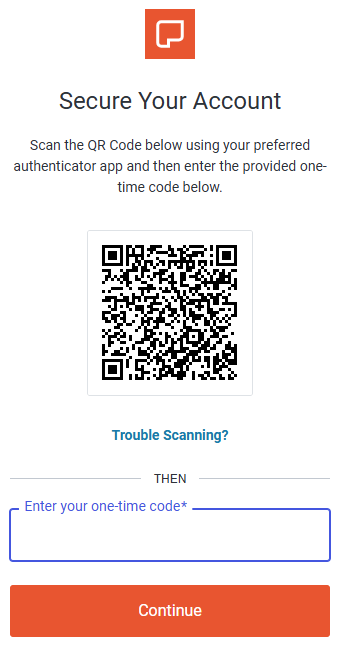
The Secure Your Account page. - Note the 6-digit authentication code for Peach Payments.
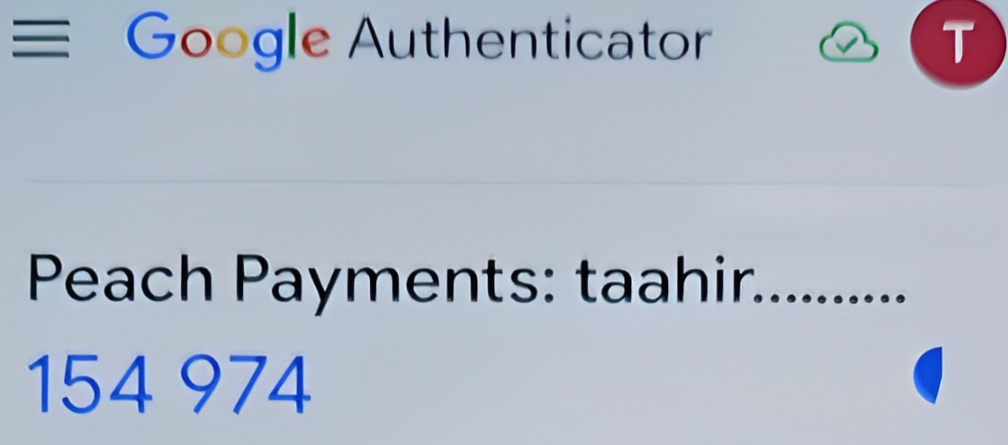
Example Google Authenticator authentication code.
- In your browser, enter the authentication code from your authenticator app and click Continue. If the Dashboard doesn't accept the code, see the Dashboard doesn't accept my authentication code.
Log in using a magic link
To access the Dashboard:
- Visit https://dashboard.peachpayments.com.
- Enter your company email address and click Submit.
- In your email inbox, click the Login to Dashboard link that you received from Peach Payments (if you've got multiple login emails, click the latest link). If the email isn't in your inbox, check your spam folder. The magic link expires after five minutes, but you can redo this procedure to receive a new link.
- When the Dashboard prompts you for two-factor authentication:
- On your phone, open your authenticator app and note the 6-digit authentication code for Peach Payments.
Example Google Authenticator authentication code. - In your browser, in the Verify Your Identity window, enter the authentication code.
- Select Remember this device for 30 days if you don't want the Dashboard to ask for an authentication code for the next 30 days.
- Click Continue.
- On your phone, open your authenticator app and note the 6-digit authentication code for Peach Payments.
Warning
If clicking the Login to Dashboard link takes you back to the Dashboard login page, enter your company email address and click Submit again. In your email inbox, copy the login URL, paste it into your browser, and press Enter. If this doesn't work, and if you're using Mimecast for email security, ask your Mimecast administrator to add the Peach Payments domain to your allowlist. If neither of these solutions work, try to log in using your password, and if that fails, contact support for assistance.
Log in using a password
When you first gain access to the Dashboard, the email contains a link to either log in using a magic link, or to complete your account by setting a password. Use the password that you set there for all future logins, unless you reset it. If you can't find the initial email, you can set your first password using the reset your password functionality.
To access the Dashboard:
- Visit https://dashboard.peachpayments.com.
- Click Username & Password beneath the Submit button.
- Enter your company email address and password, and click Log in.
- When the Dashboard prompts you for two-factor authentication:
- On your phone, open your authenticator app and note the 6-digit authentication code for Peach Payments.
Example Google Authenticator authentication code. - In your browser, in the Verify Your Identity window, enter the authentication code.
- Select Remember this device for 30 days if you don't want the Dashboard to ask for an authentication code for the next 30 days.
- Click Continue.
- On your phone, open your authenticator app and note the 6-digit authentication code for Peach Payments.
Reset your password
If you've forgotten your password, you can reset it without contacting Peach Payments support.
The following video showcases how to reset your Peach Payments Dashboard password:
To reset your password:
- Visit https://dashboard.peachpayments.com.
- Click Username & Password beneath the Submit button.
- Click Don't remember your password?.
- Enter your company email address and click Send email.
- In your email inbox, find the
Password Change Requestemail and click the link to reset your password. - Enter and confirm your new password, then click Submit.
Warning
If you cannot log in using your password, try to log in using the magic link, and if that fails, contact support for assistance.
Manage multiple businesses
The Peach Payments Dashboard enables you to manage multiple businesses configured in a hierarchy. One organisation could have multiple linked businesses, which you can manage as follows:
- View and manage transactions across businesses
- View and manage team members across businesses
- Switch between businesses
Switch between businesses
If you have access to multiple businesses on the Peach Payments Dashboard, you can switch between businesses as follows:
- Log in to the Peach Payments Dashboard.
- In the upper left of the Dashboard, click the business name.

Business selector. - Select the business that you want to switch to. If it's not in the list, there is a View all businesses that you can click, then search for and select the business.

Select the business that you want to switch to.
The Dashboard switches to the selected business.
Get help from Peachie
Peachie is an AI assistant in the Dashboard that answers questions about your account and Peach Payments products in plain language. To open it, click Ask Peachie in the lower left of the Dashboard.
The chat has three tabs:
- Topics: Choose a topic to start a chat, or type your question in the box. You can ask about anything, whichever topic you choose.
- My Chats: Return to your earlier chats.
- Resources: Search help videos and documentation.
What you can ask
What Peachie can help with depends on whether your account is onboarding or live:
| Account | Topics | Peachie can tell you about |
|---|---|---|
| Onboarding | Application status, Business information, Verification, and Going live | Your application progress and next step, directors who still need to verify their identity, accepted verification documents, checks in progress, and what's outstanding before you can go live. |
| Live | Transactions, Settlements, Account, Technical, and Other | Transaction counts and totals for any period, why a specific transaction failed, payment summaries, settlements, business and team details, active payment methods, and available reports. |
Peachie also answers how-to questions about Peach Payments products, such as Payment Links, plugins, the APIs, and webhooks. For example, ask "When can I go live?", "What was my success rate last month?", or "Why did this transaction fail?" followed by the transaction ID.
Limitations
- Peachie looks up information but doesn't make changes. It can't issue refunds, change settings, or edit business details, but it links you to the Dashboard page where you can.
- Peachie only sees your business's account, and only what your user role allows. It never shows API keys or channel credentials, and it partly hides bank account and ID numbers.
- Peachie summarises transactions instead of listing them in the chat. Click View transactions to see the matching transactions in the Dashboard.
- You can't attach files in your chat with Peachie.
- On the sandbox Dashboard, Peachie answers product questions but can't look up account data.
- Peachie's answers might be incomplete or incorrect.
If Peachie can't resolve your question, ask to speak to a person or email support@peachpayments.com. Each chat has a reference number, such as CHT-0001, that you can quote to support.
FAQ
The Dashboard doesn't accept my authentication code; what should I do
Show answer
Authentication codes depend on your phone's clock. If you set your phone's date and time manually and they're out by even a minute or two, your authenticator app shows codes that the Dashboard rejects. To fix this:
- In your phone's settings, turn on automatic date and time, and automatic time zone if your phone has that setting. For example, on an iPhone, go to Settings > General > Date & Time and turn on Set Automatically. On Android, the exact menu depends on your phone; for example, look under Settings > System > Date & time, or on Samsung phones, Settings > General management > Date and time.
- In your authenticator app, check that you're reading the code for Peach Payments, if the app holds codes for more than one account.
- Enter the latest code that your app shows. If the code is about to change, wait for the next one.
If the Dashboard still doesn't accept your codes, contact support.
I've got a new phone, or lost my phone, and cannot retrieve an authentication code; how do I log in to the Peach Payments Dashboard
Show answer
The authenticator app on your old phone holds your authentication codes, so a new phone doesn't have them until you set it up.
If you still have your old phone, check whether your authenticator app can transfer accounts to your new phone. For example, Google Authenticator offers Transfer codes. If it can't, or if you've lost your phone:
- Ask someone on your team who has owner or administrator access to reset your two-factor authentication enrolment.
- Install an authenticator app on your new phone.
- Log in and enrol in two-factor authentication again.
If nobody else on your team has owner or administrator access, for example because you're the only one or because the owner or administrator has left your business, contact support and request that they reset your two-factor authentication enrolment so that you can log in.
To avoid this, make sure that more than one person on your team has owner or administrator access. An owner or administrator can give another team member administrator access by editing the team member's role.