# Overview
The sandbox environment lets you test payment flows without processing real transactions.
# Card
For card transactions, use **test card numbers** (available from the **Test credentials** button on any page) to simulate 3-D Secure outcomes, and use **amount-based error simulation** to trigger specific acquirer return codes and edge-case behaviours.
Amount-based simulation works by encoding the desired acquirer response code in the **last two digits** of the transaction amount. The API accepts the full amount in minor units (for example, cents for ZAR) - not a decimal value. For example, use `1051` for R10.51; the last two digits (`51`) become acquirer response code `51` (insufficient funds).
Amount-based (cents) testing is only available with certain acquiring banks. Before you begin, contact [Peach Payments support](https://support.peachpayments.com/support/tickets/new?ticket_form=log_a_support_ticket) to have it enabled for your account.
Amount-based simulation returns **acquirer response codes** (ISO 8583 field 39). These are different from **Peach Payments result codes** (`000.000.000`, `800.100.xxx`, and so on). Both are documented on the [Response codes](/docs/response-codes) page. A single failed payment may include both: an acquirer code from the simulator and a Peach Payments result code mapped from it.
## Amount-based return codes
Submit the amount as a whole number in minor units. The simulator reads the **last two digits** as the acquirer return code (field 39). When those digits are not `00`, the payment is declined with that code.
| Amount (minor units) | Display amount | Last two digits | Acquirer return code |
| :------------------- | :------------- | :-------------- | :------------------------- |
| `1051` | R10.51 | `51` | `51` |
| `2505` | R25.05 | `05` | `05` |
| `10014` | R100.14 | `14` | `14` |
| `5000` | R50.00 | `00` | Success (no code override) |
Set the last two digits to the two-digit ISO 8583 response code you want to simulate. See [Common acquirer response codes](/docs/response-codes#common-acquirer-response-codes) for frequently used codes.
## Special test amounts
Some fixed amounts trigger specific simulator behaviours that cannot be expressed through the cents rule alone. Use minor units as elsewhere - for example, `9994` for R99.94.
| Amount (minor units) | Display amount | Behaviour |
| :------------------- | :------------- | :----------------------------------------------------------------------------------------------------------------------------------------------------------- |
| `9994` | R99.94 | Simulates an echo STAN mismatch |
| `9967` | R99.67 | Simulates a request or response STAN mismatch |
| `9999` | R99.99 | Simulates a timeout or uncertain result |
| `9900` | R99.00 | Structured data tags containing trace IDs are not added to the response (or are removed if present), simulating an acquirer that does not return a trace ID |
Use these amounts when testing reconciliation, retry logic, or timeout handling in your integration.
## CIT and COF trace ID simulation
For initial Cardholder Initiated Transaction (CIT) or Credential on File (COF) requests - where structured data tags `CARDHOLDER_INITIATED_PAYMENT` or `RECURRING_PAYMENT` equal `F` - the simulator returns hardcoded trace ID values in brand-specific tags. This lets you simulate a correct CIT response and validate subsequent Merchant Initiated Transaction (MIT) requests.
| Card brand | trace ID tags returned |
| :--------- | :------------------------------- |
| Mastercard | `BANKNET_REF_NR`, `BANKNET_DATE` |
| Visa | `TRANSACTION_ID` |
| Amex | `GLOBE:ACQUIRERREFERENCEDATATID` |
| Diners | `SCHEME_REFERENCE_DATA` |
To test the scenario where an acquirer does not provide a trace ID, use amount `9900` (R99.00) on the initial CIT request. For MIT and recurring payment flows, see [Gateway agnostic MITs](/flows/gateway-agnostic-mit) and [Recurring payments and subscriptions](/flows/recurring-payments).
## Merchant Advice Code testing
Amounts where the display value is `1234.XX` (where `XX` is not `00`) return an error response code together with a Merchant Advice Code. Submit the amount in minor units - for example, `123403` for R1234.03. The last two digits (`03`) are used as the Merchant Advice Code.
| Card brand | Tag |
| :--------- | :------------------------- |
| Visa | `ORIGINAL_RESPONSE_CODE` |
| Mastercard | `MERCHANT_ADVICE_CODE` |
For example, amount `123403` (R1234.03) returns an error with Merchant Advice Code `03`. Use this to test how your integration handles issuer retry guidance.
Several alternative payment methods can be tested in sandbox with the credentials and steps below. Methods that cannot be tested in sandbox are marked **Live environment only** — test those in the live environment.
The same credentials are available from the **Test credentials** button (bottom-right of any page).
# Apple Pay
Requires an Apple developer test account.
1. Sign in to a device with an Apple sandbox tester account.
2. Add a test card from [Apple's sandbox testing page](https://developer.apple.com/apple-pay/sandbox-testing/).
3. Pay with Apple Pay as normal.
# Google Pay
After you select Google Pay, pick a card to simulate a specific scenario.
# Samsung Pay
Cannot be tested in sandbox — perform testing in the live environment.
# PayShap
Use the following local phone numbers in the playground. On the Approve Payment screen you do not need to authorise anything.
| Scenario | Phone number | Result code |
| :--- | :--- | :--- |
| Payment successful | 711111200 | — |
| Transaction declined | 711111160 | 100.396.101 (not shown in Dashboard) |
| Transaction expired | 711111140 | 100.396.104 (not shown in Dashboard) |
| Unexpected communication error with connector | 711111107 | 900.100.100 |
# Pay by Bank
Test against the bank simulator built into the bank selector interface.
1. Start a Pay by Bank payment.
2. When the bank selector appears, click **SIMULATOR**.
3. Select the status you want to simulate.
# Capitec Pay
Use the following ID or phone numbers to test certain Capitec Pay scenarios.
**Transaction scenarios**
| Scenario | ID number | Phone number | Result code |
| :--- | :--- | :--- | :--- |
| Client not registered on the banking app | 1111111111106 | 111111106 | 000.400.102 |
| Default transaction limit exceeded | 1111111111109 | 111111109 | 800.100.162 |
| Payment consent declined by client | 1111111111137 | 111111137 | 100.396.101 (not shown in Dashboard) |
| Payment consent request timed out | 1111111111138 | 111111138 | 100.380.501 |
| Payment failed | 1111111111139 | 111111139 | 800.100.100 |
| Client reported payment consent request as fraud | 1111111111140 | 111111140 | 000.100.220 |
| Payment successful | 1111111111214 | 111111214 | — |
> - High-risk merchants must provide verified ID numbers that the customer cannot edit, and cannot offer the phone number option.
> - Testing against the actual endpoints (instead of the simulator) requires coordination with Peach Payments and Capitec — [contact support](https://support.peachpayments.com/support/tickets/new?ticket_form=log_a_support_ticket).
# Payflex
Create a Payflex test account in the sandbox flow. Use an amount between R10 and R50,000.
1. When the Payflex interface appears, create a test account with any email you can access (you need the OTP), any password, and any name.
2. Enter the ID number, phone number, OTP, and test card below to complete the payment.
- **ID number**: `9202190061088`
- **Phone number**: `0123456789`
- **OTP**: `911911`
- **Card number**: `5181030000183696`
- **Card holder**: Any name
- **CVV**: `576`
- **Expiry date**: 01/28
> Payflex must [add you to their allowlist](https://support.peachpayments.com/support/tickets/new?ticket_form=log_a_support_ticket) before you can test. The default Orchestration playground account is already allowlisted.
# ZeroPay
Use the test ID number and OTP during the ZeroPay flow.
- **ID number**: `9512235170089`
- **OTP**: `00000`
- **Amount**: R30 or more
# Float
Use the following details to test Float in sandbox.
- **Card number**: `5200000000000023`
- **CVV**: Any three digits
- **Expiry date**: Any future date
- **Amount**: R60 — instalment amounts cannot include cents, so use an amount like R60 so that 2, 3, 4, 5, or 6 payments all divide evenly
# Happy Pay
Create a Happy Pay test account, then simulate the card step to complete the flow.
1. Create a test account at [qa.happypay.co.za/register_test](http://qa.happypay.co.za/register_test).
2. When the Happy Pay interface appears, log in with the account's email address and password, then enter any four digits as the OTP.
3. Click **PAY IN INSTALMENTS**, accept the terms and conditions, and click **Proceed**.
4. At the top of the Happy Pay interface, click **Simulate Card** to complete the transaction.
> Only one instalment payment can be active per account — create multiple accounts to test multiple scenarios.
# PayJustNow
Cannot be tested in sandbox — perform testing in the live environment.
# Scan to Pay
Pay with a Scan to Pay app switched to the test environment, using test wallet cards.
1. Download a Scan to Pay app on your phone from the official stores. Android: [Nedbank Scan to Pay](https://play.google.com/store/apps/details?id=com.oltio.nedbank.masterpass), [Standard Bank Scan to Pay](https://play.google.com/store/apps/details?id=com.oltio.standard.bank.masterpass), [Scan to Pay](https://play.google.com/store/apps/details?id=com.oltio.capitec.masterpass). iOS: [Nedbank Scan to Pay](https://apps.apple.com/za/app/nedbank-scan-to-pay/id1015918517), [Standard Bank Scan to Pay](https://apps.apple.com/za/app/standard-bank-scan-to-pay/id895028482), [Masterpass Scan to Pay](https://apps.apple.com/gb/app/masterpass-scan-to-pay/id1084707614).
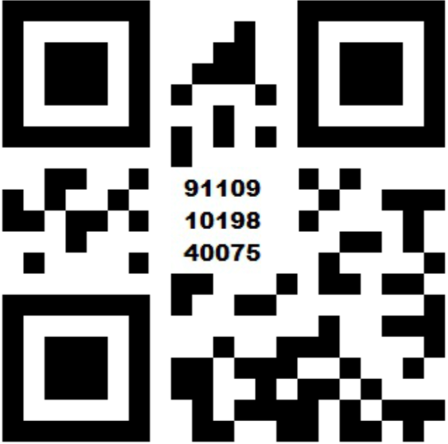
2. Switch the app to the Scan to Pay test environment by scanning this QR code.
3. Add a test card to the wallet (see below), any bank PIN.
4. Select Scan to Pay as the payment method, scan the QR code on the payment page, and pay with the stored card.
5. Do not close the browser after completing the payment in the app.
**Test wallet cards (any 16-digit number with these prefixes)**
| Type | Card prefix | Response |
| :--- | :--- | :--- |
| Debit | 50010001000105 | 00 — success |
| Debit | 50010001000101 | 51 — insufficient funds |
| Debit | 50020001000103 | 91 — bank unavailable |
| Credit | 50020001000105 | 00 — success |
| Credit | 50020001000101 | 51 — insufficient funds |
| Credit | 50020001000103 | 91 — bank unavailable |
> Keep your transaction reference under 45 characters — longer references cause errors in sandbox.
# 1Voucher
Sandbox testing needs test vouchers — [request them from support](https://support.peachpayments.com/support/tickets/new?ticket_form=log_a_support_ticket).
# Mobicred
Request test credentials directly from Mobicred.
# RCS
Use the test card number with the amounts below. The sandbox flow bypasses the OTP and success screens.
- **Card number**: `6010240000000000`
| Scenario | Amount (minor units) | Result code |
| :--- | :--- | :--- |
| Payment successful | 100 | — |
| Payment cancelled: consent expired while in progress | 75 | 100.396.101 (not shown in Dashboard) |
| Payment cancelled: consent declined by customer | 80 | 100.396.101 (not shown in Dashboard) |
> Settlement can take up to five minutes.
# MoneyBadger
Cannot be tested in sandbox — perform testing in the live environment.
# M-PESA
Use your own M-PESA account to test. M-PESA refunds the transactions automatically in seven days.
# blink by Emtel
Use the following phone numbers to test blink by Emtel simulator scenarios.
**Transaction scenarios**
| Scenario | Phone number | Result code |
| :--- | :--- | :--- |
| Client does not exist for the given mobile number | 51111213 | 200.100.501 |
| Session expired | 51111206 | 900.300.600 |
| Payment successful | 51100000 | — |
> - For the successful payment scenario (`51100000`), wait on the confirmation screen until the confirmation request expires — that simulates success.
> - Testing against the actual endpoints (instead of the simulator) requires coordination with Peach Payments and Emtel — [contact support](https://support.peachpayments.com/support/tickets/new?ticket_form=log_a_support_ticket).
# MCB Juice
Use any phone number starting with 5, and the following amounts to test MCB Juice failure scenarios. A successful transaction cannot be tested end-to-end.
| Scenario | Amount (minor units) | Result code |
| :--- | :--- | :--- |
| Risk timeout | 125 | 100.380.501 |
| General error | 140 | 900.100.201 |
# MauCAS
Use the following amounts to test MauCAS simulator scenarios.
| Scenario | Amount (minor units) | Result code |
| :--- | :--- | :--- |
| Error response from MauCAS | 1540 | 600.100.100 |
| HTTP 5xx response from MauCAS | 1630 | 900.100.100 |
| Transaction failure | 2500 | 800.100.152 |
| Transaction successful | 2510 | — |
---
Interactive version: https://playground.peachpayments.com/docs/testing